
Nothing kills the hype of entering the Nexus of Embers faster than a crash to desktop (CTD) before the title screen even loads. Because Dark Souls: Archthrones relies on complex DLL injection and a specific legacy version of the Dark Souls III engine, it is significantly more fragile than a standard mod.
If you are seeing a white screen, getting a “Failed to Load Assets” error, or crashing immediately upon clicking Play, you are likely failing the version handshake check. This guide isolates the technical friction points identified in the latest mod build and provides definitive fixes.
The “Quick Fix” Checklist (Read This First)
Before editing config files, verify these three non-negotiables. 90% of crashes are caused by ignoring Step 1.
- Version Check: You MUST be on Dark Souls III
v1.15. The mod will crash instantly on the current Steam version. - Anti-Virus: Your AV likely flagged
Archthrones_Lazy_Loader.dllas a trojan. This is a false positive caused by the injection behavior. Restore the file and whitelist the game folder. - Clean Install: Do not install Archthrones over other mods like Cinders or The Convergence. You need a clean base.
Still crashing? Check our specific installation guides:
- PC Users: How to Install Archthrones: The Complete Guide
- Steam Deck Users: Steam Deck & Linux Configuration Guide
Issue 1: White Screen Crash on Launch
This is the most common error reported in 2026. The game window opens, turns white, hangs for 3-5 seconds, and then closes without an error message.
Why it Happens:
This is usually a resolution negotiation failure. The Archthrones custom engine hook is attempting to scale the UI to a resolution your monitor (or the game engine’s previous config) rejects.
How to Fix It
You need to force the game to launch in a “safe” resolution window.
- Navigate to your AppData folder:
%appdata%\DarkSoulsIII\- Open the
GraphicsConfig.xmlfile with Notepad. - Find the resolution lines and manually change them to standard 1080p:
<Resolution-WindowScreenWidth>1920</Resolution-WindowScreenWidth>
<Resolution-WindowScreenHeight>1080</Resolution-WindowScreenHeight>- Save the file and set it to “Read Only” in the file properties to prevent Steam from reverting it.
Issue 2: “Failed to Load Assets” Error
This error appears as a pop-up dialogue box after the game attempts to hook into the executable.
Why it Happens:
The mod cannot find the 11GB asset pack, or the DarkSoulsIII.exe is not the correct version. This often happens if Steam “auto-updated” your game back to the latest retail version without you noticing.
The Fix: Re-Verify the Downpatch
You must confirm you are actually running the 1.15 executable.
- Go to your game folder:
\Steam\steamapps\common\DARK SOULS III\Game\ - Right-click
DarkSoulsIII.exe> Properties > Details. - Product Version must read
1.15. - If it reads
1.15.2or anything higher, the mod will fail. You must repeat the downpatch process.
Need the files? Follow our guide on How to Downpatch Dark Souls 3 to v1.15.
Issue 3: Steam Deck Crashing (Linux/Proton)
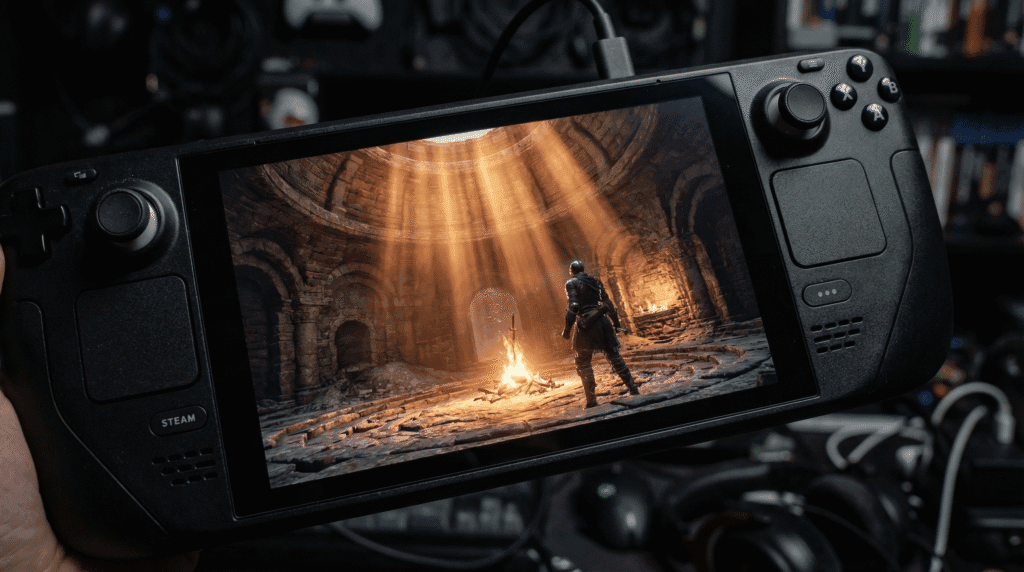
If you are playing on Linux or Steam Deck, the mod will not launch out of the box because Proton ignores the custom dinput8.dll file required for the mod’s code injection.
Mandatory Launch Argument
You must tell Proton to load the mod’s DLLs.
- Open Steam OS.
- Go to Properties > General.
- In Launch Options, paste this exact command:
WINEDLLOVERRIDES="dinput8.dll=n,b" %command%- Critical: Force compatibility to Proton 7.0-6. Newer versions (GE-Proton 9.x) currently cause regressions and instability with the 1.15 executable.
For a full breakdown of handheld optimization, see our Steam Deck & Linux Configuration Guide.
Issue 4: Save Files Not Appearing
Players often panic because their characters are “gone” after installing the mod.
Why it Happens:
This is a safety feature, not a bug. Archthrones segregates its save files to prevent getting your main Steam account banned. It does not read your vanilla Dark Souls III saves.
Where to Find Your Saves
- Vanilla Saves:
%appdata%\DarkSoulsIII\
Archthrones Saves:%appdata%\Roaming\Archthrones\
Warning: Do not attempt to drag-and-drop vanilla saves into the Archthrones folder. The data structure is different due to new items and world states; doing so will corrupt the save slot.
Issue 5: Low FPS & Stuttering in “War-Torn Village”
If your game launches but runs like a slideshow in the first area, you are experiencing the “Draw Call Bottleneck.”
Why it Happens:
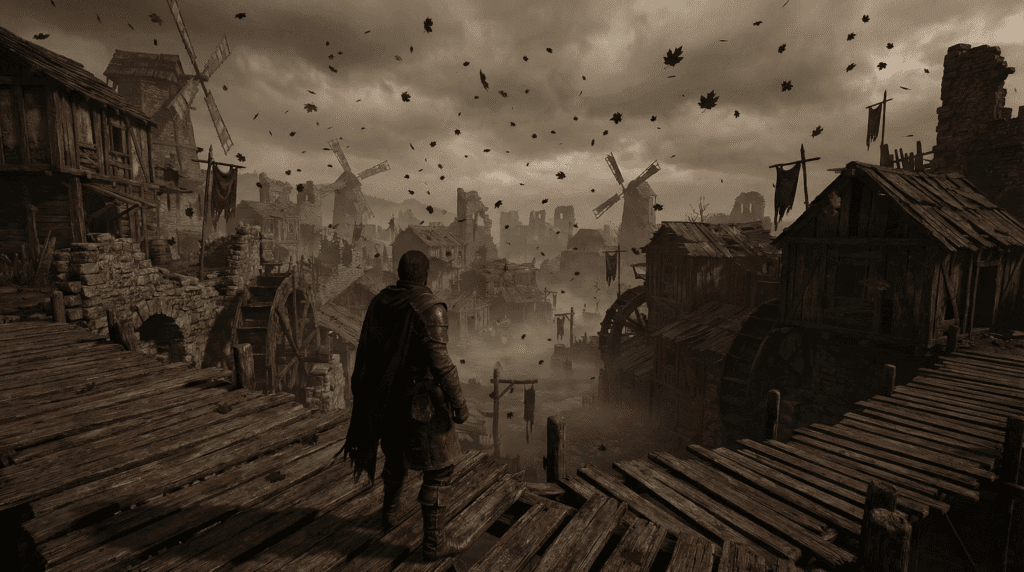
The Archthrones team pushed the 2016 engine to its limit. The War-Torn Village has significantly higher asset density and lighting script complexity than the base game.\
Optimization Steps
- Lighting: Set “Lighting Quality” to Medium. The High setting uses unoptimized scripts that tank FPS on older CPUs.
- VRAM Check: If you have less than 4GB VRAM (e.g., GTX 1050), reduce Textures to Medium. The Phoenix Tower area is notorious for high VRAM usage.
For detailed hardware benchmarks, check our System Requirements & Performance Optimization page.
Frequently Asked Questions (FAQ)
Q: Why does my antivirus call Archthrones a Trojan?
The mod uses a technique called “DLL Injection” to modify the game’s code while it is running. This behavior looks identical to how malware behaves, triggering false positives in Windows Defender and Avast. It is safe to whitelist the folder if you downloaded the mod from the official Nexus page.
Q: Does Archthrones work with the latest Steam version?
No. The mod relies on static memory addresses that only exist in version 1.15. The current Steam version has different memory pointers, making the mod completely incompatible. You must downpatch.
Q: Can I play online without getting banned?
Yes, but the mod automatically connects you to a private server (DS3OS) to keep you safe. You will not see messages or summon signs from the official Dark Souls III servers.
Q: My controller isn’t working on PC. Why?
Steam Input often conflicts with the 1.15 executable. Try disabling “Steam Input” in the game’s controller properties, or use a tool like DS4Windows to emulate an Xbox 360 controller natively.
Q: Is there a fix for the “invisible enemies” glitch?
This is a symptom of a corrupt downpatch where some assets from the newer version were left behind. You need to verify the integrity of your game files on Steam (which removes the mod), and then perform the installation process again from scratch.