
If you have attempted to run Dark Souls: Archthrones on the Steam Deck or a Linux machine using the standard installation method, you likely encountered a crash or a persistent white screen.
This is not a hardware limitation; it is an architecture conflict. Archthrones relies on a custom dinput8.dll file to inject its code into the Dark Souls III engine. By default, the Proton compatibility layer (used by SteamOS) ignores Windows-specific DLLs to ensure stability, meaning the mod never actually loads.
This guide details the mandatory configuration steps required to force Linux to recognize the mod, fix the resolution handshake errors, and lock in a stable 40FPS for the Demo v1.1.3.
The “Golden Rule”: Mandatory Launch Options
Before you worry about graphics settings or proton versions, you must tell SteamOS to load the mod’s specific DLL file. Without this command, you are simply launching vanilla Dark Souls III.
The Command:WINEDLLOVERRIDES="dinput8.dll=n,b" %command%
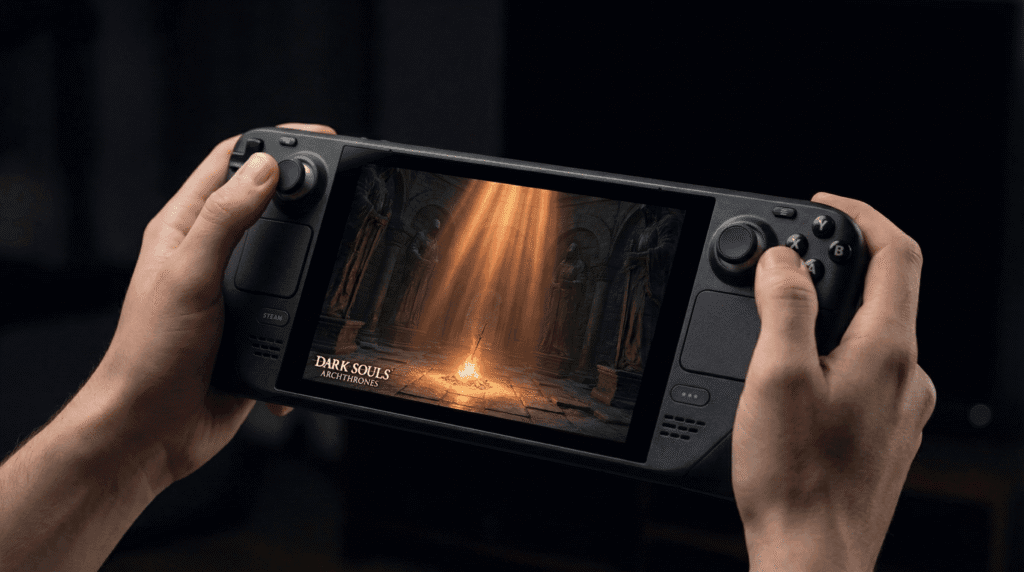
Why This is Necessary
This command instructs the WINE runner (the backbone of Proton) to prioritize the “native” (n) DLL file located in your game folder over the “builtin” (b) system version. This allows the Archthrones code injection to execute properly.
Step-by-Step Configuration Guide
Follow this process strictly. If you have not yet installed the mod files or downpatched your game, please complete our Installation Guide and Downpatching Guide first.
Step 1: Force Compatibility Mode
Newer versions of Proton (GE-9.x or Experimental) have shown regression issues with the 1.15 executable used by Archthrones. For the most stable experience, we recommend rolling back to a legacy version.
- Navigate to Dark Souls III in your Library.
- Click the Gear Icon (Settings) > Properties.
- Select the Compatibility tab.
- Check “Force the use of a specific Steam Play compatibility tool”.
- Select Proton 7.0-6 or GE-Proton8-6.
Step 2: Apply the DLL Override
- Stay in the Properties menu.
- Navigate to the General tab.
- Scroll down to Launch Options.
- Enter the following text exactly as shown (case sensitive):
WINEDLLOVERRIDES="dinput8.dll=n,b" %command%Note: If you are using other launch arguments (like -novid), simply add a space between them and the override command.
Step 3: The “White Screen” Resolution Fix
A common issue on the Steam Deck is the “White Screen of Death” upon launch. This occurs because the game engine fails to negotiate the aspect ratio with the Deck’s 1280×800 display during the initial handshake.
The Fix:
- In the General tab of Properties.
- Set Game Resolution to
1280x720(not Native). - Check the box: Set resolution for internal and external display.
This forces the game to render in a standard 16:9 aspect ratio, which the older Dark Souls III engine handles much better than the Deck’s native 16:10.
Performance Optimization (40Hz vs 60Hz)
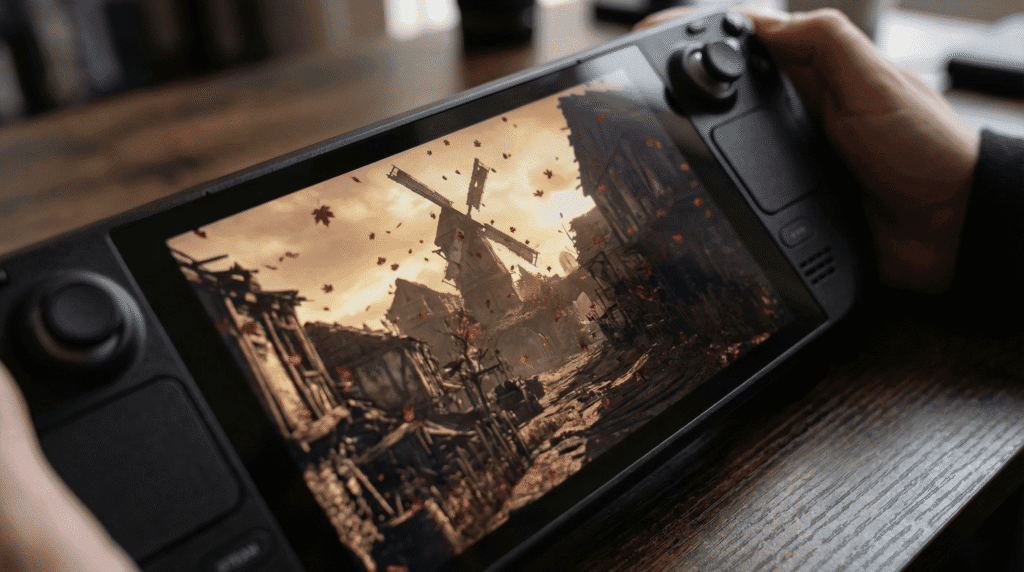
While Archthrones is built on the 2016 DS3 engine, the asset density in new areas like the War-Torn Village is significantly higher than the base game. Expecting a locked 60FPS on the Steam Deck is unrealistic for these specific zones.
We recommend the “Golden 40” setup for the best balance of battery life and frame pacing:
- Frame Limit: 40 FPS
- Refresh Rate: 40 Hz
- TDP Limit: 10-12 Watts (Optional, saves battery)
- In-Game Settings:
- Textures: High
- Shadows: Medium
- Lighting: Low (Fixes some stutter in the Phoenix Tower)
If you are experiencing severe frame drops, consult our System Requirements & Performance page to understand where the CPU bottlenecks are occurring.
Controller Layout & Back Buttons
Archthrones introduces new combat mechanics, specifically Deflection and Guard Counters. These require precise timing that can be difficult with the standard bumper placement.
We recommend mapping the L1 (Block/Deflect) to one of the Rear Grip Buttons (L4 or R4). This allows for faster reaction times when trying to perfect-block boss attacks like those of the Janara One-Eye.
For a deep dive into how these new systems work, read our guide on New Combat Mechanics: Deflection & Posture.
Common Linux Issues & Troubleshooting
“Failed to Load Assets” Error
If you see this error, it usually means the Lazy Loader tool failed to inject the 11GB asset pack. On Linux, this is often a file permission issue.
- Fix: Ensure you have read/write permissions enabled for the folder where you installed the mod.
- Verify: Check your file integrity using the steps in our Troubleshooting Hub.
Save File Location on Linux
Unlike Windows, Linux isolates game data in a “prefix.” If you need to back up your saves or transfer them to a PC, you will find them here:
/home/deck/.local/share/Steam/steamapps/compatdata/374320/pfx/drive_c/users/steamuser/AppData/Roaming/Archthrones/Note: The number 374320 is the Steam AppID for Dark Souls III.
For more on save safety and avoiding bans, strictly follow our Private Servers & Save File Safety protocols.
Frequently Asked Questions (FAQ)
Can I play Archthrones on Steam Deck OLED?
Yes, the OLED model runs the mod perfectly. The deep blacks look fantastic in the darker areas like the Cathedral of the Deep. The configuration steps (DLL override) remain exactly the same as the LCD model.
Does this configuration work for Desktop Linux (Ubuntu/Arch)?
Yes. As long as you are using Steam and Proton, the WINEDLLOVERRIDES launch argument is universal. If you are using Lutris or Heroic Launcher, you will need to configure the DLL override in the “Runner Options” of those specific applications.
Why does my game crash when entering the War-Torn Village?
This is a known memory bottleneck. The War-Torn Village is the most asset-heavy area in the demo. If you crash here, try lowering your “Effects Quality” to Low and restarting the game to clear the VRAM buffer.